# ⇅ Portage
**A universal browser data swap.** Export your setup to a portable JSON bundle. Import it anywhere. Chrome to Firefox, Firefox to Chrome, or a fresh install of the same browser. No cloud, no lock-in.
[Website](https://portage.pvrz.lol) - [Site Github](https://github.com/pvrzz/portage-site)
[](https://youtu.be/yzM9Ke0LPfw)
---
## Why
Browsers intentionally make it harder to swap from their ecosystem, and often lack the proper support for third-party browsers built off of the same source (ex. Chromium, Firefox). Portage is a straightforward, open-source tool that reads what it's allowed to read, dumps it into a human-readable `*.portage.json` file, and rebuilds it on the other side. Because the export is just plain JSON, it bridges the gap between competing browsers or lets you easily migrate to a new machine.
## What transfers
Extensions are locked out of reading local profile files straight from your hard drive, so Portage routes everything through official WebExtension APIs.
| Data | Export | Import |
|---|---|---|
| **Bookmarks** | ✅ Full tree | ✅ Recreated in a `Portage Import` folder |
| **History** | ✅ URLs, titles, timestamps | ✅ Re-added (Firefox keeps full metadata; Chrome limits to URLs) |
| **Cookies** | ✅ Full export | ✅ Re-injected to keep you logged in |
| **Open tabs** | ✅ Active & recently closed | ✅ Reopened instantly |
| **Reading list** | ✅ Exported (Chrome only) | ✅ Chrome: Reading list · Firefox: Bookmarks folder |
| **Extensions** | ✅ Exported as a text checklist | ℹ️ Cannot auto-install (see below) |
### The Extension Workaround (`.txt`)
There is no API for an extension to silently install another extension. To handle this, Portage generates a secondary `portage--extensions-.txt` file. This acts as a manual checklist, complete with direct links to the Chrome Web Store or Firefox Add-ons site. Click through the links to rebuild your lineup, or drop the list into an AI to track down the equivalents for your new browser.
### What's Missing
Passwords and autofill data are completely walled off from extension APIs. You will need to export those manually from your browser's built-in settings (Chrome: Password Manager → Export; Firefox: Passwords → Import).
## Privacy & Security Model
* **Zero telemetry:** Everything runs entirely on your local machine. No network requests are ever made.
* **Memory only:** Portage holds your data in the active page's memory and wipes it completely as soon as you export, import, or close the tab.
* **Handle with care:** Your export bundle contains live session cookies. Treat this file exactly like an exported password vault. Keep it local, import it, and delete it immediately.
* **No deduplication:** Importing the exact same file twice will duplicate your history and cookies. Just run it once and verify.
## Install (Unpacked)
### Chrome
1. Navigate to `chrome://extensions` and toggle on **Developer mode**.
2. Click **Load unpacked** and select the `chrome/` directory.
3. Click the Portage icon in your extension toolbar to launch.
### Firefox
1. Navigate to `about:debugging#/runtime/this-firefox`.
2. Click **Load Temporary Add-on…** and select the `manifest.json` inside the `firefox/` directory.
3. Temporary add-ons wipe when Firefox restarts. You'll need to reload it for your next session, or sign the package for a permanent install.
4. Click the Portage icon in your extension toolbar to launch.
## Usage
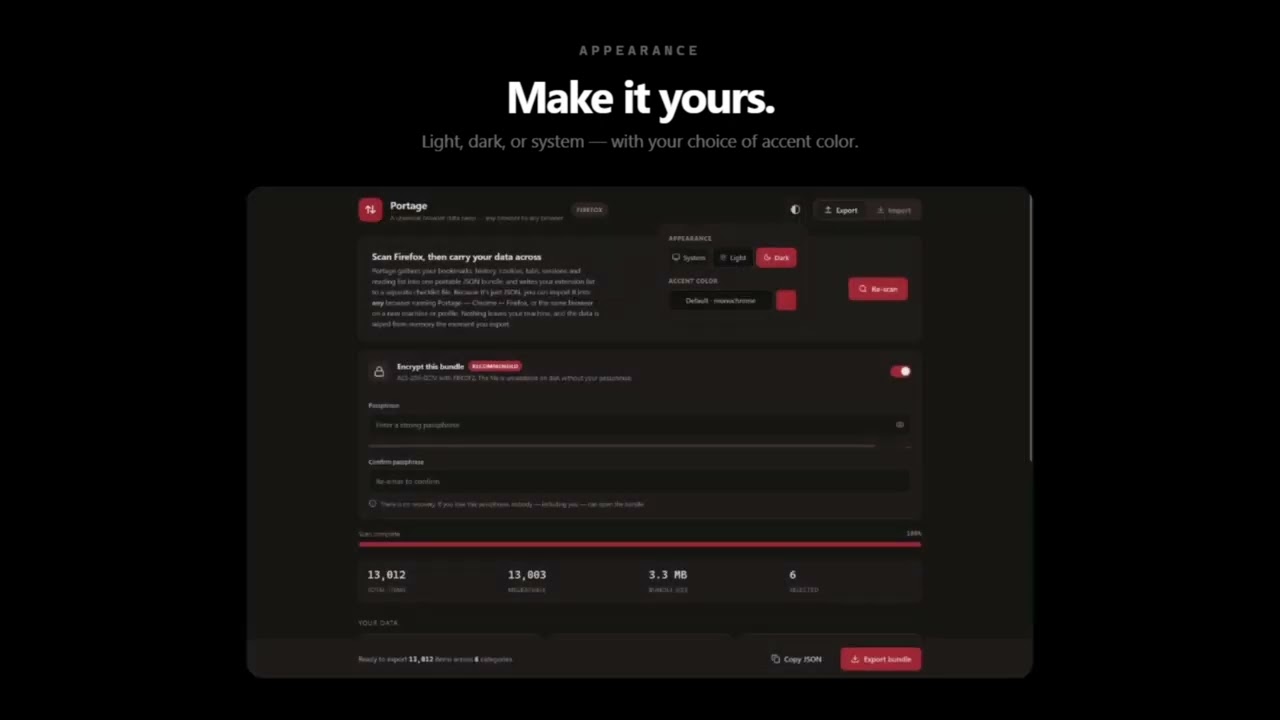
1. **Export:** Open Portage on your old browser, click **Scan**, uncheck anything you want to leave behind, and hit **Export bundle**. It drops the JSON (and the optional extension checklist) right to your downloads.
2. **Import:** Open Portage on your new browser, drag and drop the `.portage.json` file, review the stats, and hit **Import selected**.