 chris
chris⇅ Portage
A universal browser data swap. Export your setup to a portable JSON bundle. Import it anywhere. Chrome to Firefox, Firefox to Chrome, or a fresh install of the same browser. No cloud, no lock-in.
Why
Browsers intentionally make it harder to swap from their ecosystem, and often lack the proper built-in transferring support for third-party browsers built off of the same source (ex. Chromium, Firefox). Portage is a straightforward, open-source tool that reads what it's allowed to read, dumps it into a human-readable *.portage.json file, and rebuilds it on the other side. Because the export is just plain JSON, it bridges the gap between competing browsers or lets you easily migrate to a new machine.
What transfers
Extensions are locked out of reading local profile files straight from your hard drive, so Portage routes everything through official WebExtension APIs.
| Data | Export | Import |
|---|---|---|
| Bookmarks | ✅ Full tree | ✅ Recreated in a Portage Import folder |
| History | ✅ URLs, titles, timestamps | ✅ Re-added (Firefox keeps full metadata; Chrome limits to URLs) |
| Cookies | ✅ Full export | ✅ Re-injected to keep you logged in |
| Open tabs | ✅ Active & recently closed | ✅ Reopened instantly |
| Reading list | ✅ Exported (Chrome only) | ✅ Chrome: Reading list · Firefox: Bookmarks folder |
| Extensions | ✅ Exported as a text checklist | ℹ️ Cannot auto-install (see below) |
The Extension Workaround (.txt)
There is no API for an extension to silently install another extension. To handle this, Portage generates a secondary portage-<browser>-extensions-<date>.txt file. This acts as a manual checklist, complete with direct links to the Chrome Web Store or Firefox Add-ons site. Click through the links to rebuild your lineup, or drop the list into an AI to track down the equivalents for your new browser.
What's Missing
Passwords and autofill data are completely walled off from extension APIs. You will need to export those manually from your browser's built-in settings (Chrome: Password Manager → Export; Firefox: Passwords → Import).
Privacy & Security Model
- Zero telemetry: Everything runs entirely on your local machine. No network requests are ever made.
- Memory only: Portage holds your data in the active page's memory and wipes it completely as soon as you export, import, or close the tab.
- Handle with care: Your export bundle contains live session cookies. Treat this file exactly like an exported password vault. Keep it local, import it, and delete it immediately.
- No deduplication: Importing the exact same file twice will duplicate your history and cookies. Just run it once and verify.
Install (Packed)
Check the releases tab of the repo, or go to the website for Portage at: https://portage.pvrz.lol/ for the latest Firefox and Chrome package.
Install (Unpacked)
Chrome
- Navigate to
chrome://extensionsand toggle on Developer mode. - Click Load unpacked and select the
chrome/directory. - Click the Portage icon in your extension toolbar to launch.
Firefox
- Navigate to
about:debugging#/runtime/this-firefox. - Click Load Temporary Add-on… and select the
manifest.jsoninside thefirefox/directory. - Temporary add-ons wipe when Firefox restarts. You'll need to reload it for your next session, or sign the package for a permanent install.
- Click the Portage icon in your extension toolbar to launch.
Usage
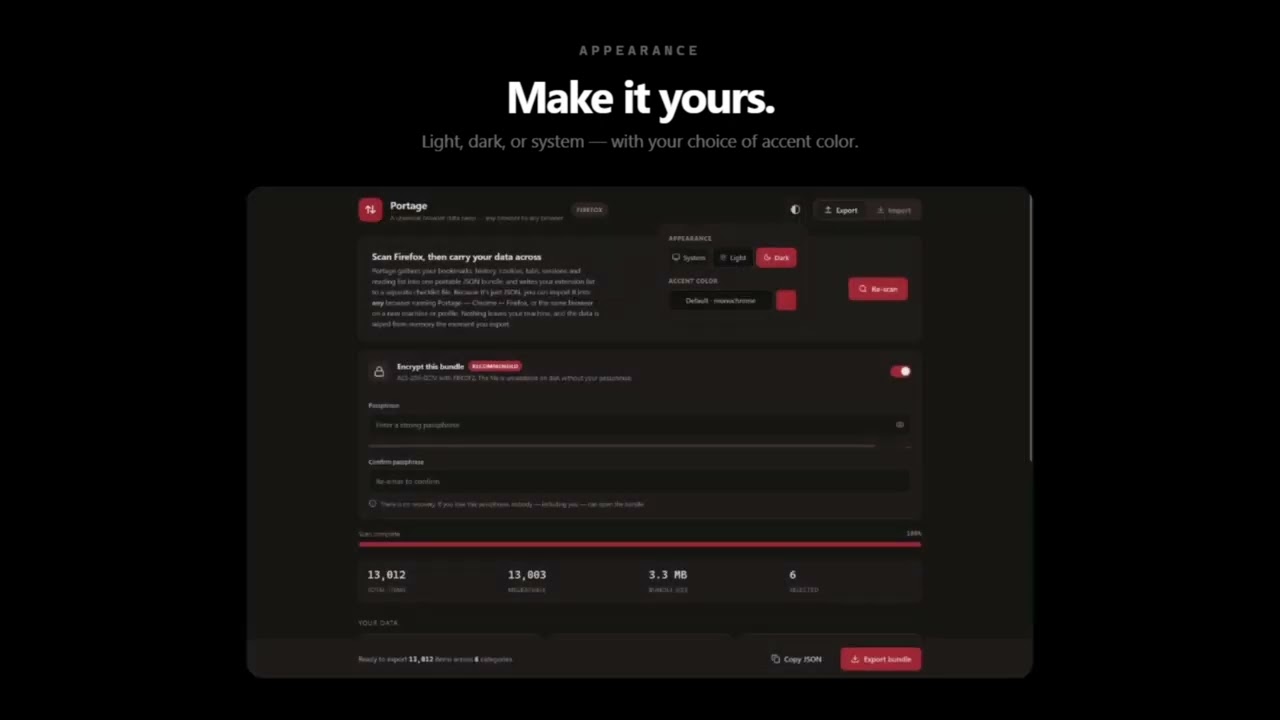
- Export: Open Portage on your old browser, click Scan, uncheck anything you want to leave behind, and hit Export bundle. It drops the JSON (and the optional extension checklist) right to your downloads.
- Import: Open Portage on your new browser, drag and drop the
.portage.jsonfile, review the stats, and hit Import selected.