 souta
7fb8ef7509
- Cookie stream: moz_cookies.expiry is milliseconds, but CDP expects
  seconds. The old code imported 52 already-expired cookies in the real
  profile and gave every remaining cookie a ~55,000-year expiry; convert
  units before comparing/sending, and skip session cookies that cannot
  survive the temporary Chromium session.
- Dashboard cookies: request partitionKey:{} for Chrome as well as Firefox
  (Chrome also omits CHIPS cookies otherwise), keep hasCrossSiteAncestor,
  omit the "unspecified" SameSite attribute for older targets, and never
  fall back to an arbitrary cookie store when importing.
- Profile safety: resolve symlinks before cp -a (a symlinked --firefox-profile
  was copied as a symlink and Firefox then opened the original profile),
  detect Chromium's dangling SingletonLock symlink with lstat, check Firefox's
  .parentlock/open descriptors via /proc instead of an optional fuser, refuse
  Firefox-looking Chromium targets and root/home, keep the OS password store
  for existing Chromium profiles, and clean the sensitive profile clone on
  SIGINT/SIGTERM.
- Exporter: never write through a dangling output symlink (O_EXCL|O_NOFOLLOW),
  refuse to export while Firefox holds the profile lock, and canonicalise
  origins so one odd origin cannot make the importer reject the whole bundle.
- Revert formatting-only manifest changes; align tools/README with the code
  (IndexedDB is supported, Node.js 22.12+, lock/symlink/password-store and
  key-generator limitations) and add regression tests for all of the above.
5.4 KiB
⇅ Portage
A universal browser data swap. Export your setup to a portable JSON bundle. Import it anywhere. Chrome to Firefox, Firefox to Chrome, or a fresh install of the same browser. No cloud, no lock-in.
Why
Browsers intentionally make it harder to swap from their ecosystem, and often lack the proper built-in transferring support for third-party browsers built off of the same source (ex. Chromium, Firefox). Portage is a straightforward, open-source tool that reads what it's allowed to read, dumps it into a human-readable *.portage.json file, and rebuilds it on the other side. Because the export is just plain JSON, it bridges the gap between competing browsers or lets you easily migrate to a new machine.
What transfers
Extensions are locked out of reading local profile files straight from your hard drive, so Portage routes everything through official WebExtension APIs.
| Data | Export | Import |
|---|---|---|
| Bookmarks | ✅ Full tree | ✅ Recreated in a Portage Import folder |
| History | ✅ URLs, titles, timestamps | ✅ Re-added (Firefox keeps full metadata; Chrome limits to URLs) |
| Cookies | ✅ Full export | ✅ Re-injected to keep you logged in |
| Open tabs | ✅ Active & recently closed | ✅ Reopened instantly |
| Reading list | ✅ Exported (Chrome only) | ✅ Chrome: Reading list · Firefox: Bookmarks folder |
| Extensions | ✅ Exported as a text checklist | ℹ️ Cannot auto-install (see below) |
The Extension Workaround (.txt)
There is no API for an extension to silently install another extension. To handle this, Portage generates a secondary portage-<browser>-extensions-<date>.txt file. This acts as a manual checklist, complete with direct links to the Chrome Web Store or Firefox Add-ons site. Click through the links to rebuild your lineup, or drop the list into an AI to track down the equivalents for your new browser.
What's Missing
Passwords and autofill data are completely walled off from extension APIs. You will need to export those manually from your browser's built-in settings (Chrome: Password Manager → Export; Firefox: Passwords → Import).
Privacy & Security Model
- Zero telemetry: Everything runs entirely on your local machine. The extension makes no network requests. The experimental profile helpers in
tools/also run locally, but they launch a browser and cannot guarantee zero browser background traffic (see the caveat in tools/README.md). - Memory only: Portage holds your data in the active page's memory and wipes it completely as soon as you export, import, or close the tab.
- Handle with care: Your export bundle contains live session cookies. Treat this file exactly like an exported password vault. Keep it local, import it, and delete it immediately.
- No deduplication: Importing the exact same file twice will duplicate your history and cookies. Just run it once and verify.
Install (Packed)
Check the releases tab of the repo, or go to the website for Portage at: https://portage.pvrz.lol/ for the latest Firefox and Chrome package.
Install (Unpacked)
Chrome
- Navigate to
chrome://extensionsand toggle on Developer mode. - Click Load unpacked and select the
chrome/directory. - Click the Portage icon in your extension toolbar to launch.
Firefox
- Navigate to
about:debugging#/runtime/this-firefox. - Click Load Temporary Add-on… and select the
manifest.jsoninside thefirefox/directory. - Temporary add-ons wipe when Firefox restarts. You'll need to reload it for your next session, or sign the package for a permanent install.
- Click the Portage icon in your extension toolbar to launch.
Usage
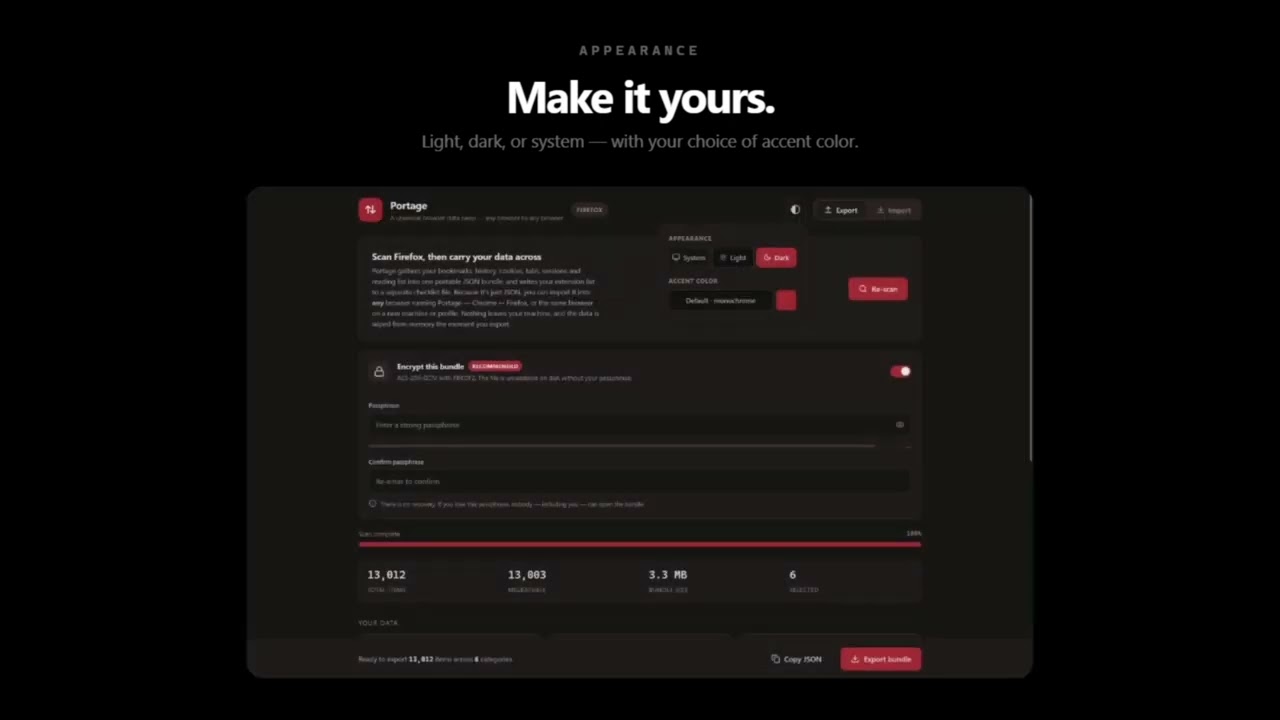
- Export: Open Portage on your old browser, click Scan, uncheck anything you want to leave behind, and hit Export bundle. It drops the JSON (and the optional extension checklist) right to your downloads.
- Import: Open Portage on your new browser, drag and drop the
.portage.jsonfile, review the stats, and hit Import selected.
Experimental: whole-profile Firefox LocalStorage transfer (Linux)
Optional Python + Node helpers can migrate all compatible first-party origins, not just open tabs, to a closed Chrome/Brave profile. Export is encrypted by default; import uses intercepted inert responses rather than contacting websites. See the step-by-step CLI and privacy limitations. Login-session preservation is not guaranteed: partitioned/container data is skipped and some sites re-authenticate for unrelated reasons. The offline cookie companion skips session and already-expired cookies.
Experimental IndexedDB migration
The Linux companion also supports first-party IndexedDB for Firefox → Chromium. It recreates database schemas, indexes, keys and supported Structured Clone data using Firefox/Chromium browser APIs, without loading live sites. Existing target IndexedDB databases are skipped to prevent accidental overwrites. Back up both profiles before using --apply. See tools/README.md for instructions, compatibility limits and tests.